
As businesses are offering flexible, remote, and hybrid working models, Therefore the use of Bring Your Own Device (BYOD) policies is rising in modern workplaces.
BYOD gives businesses a more budget-friendly alternative to purchasing and issuing work-specific devices for employees. Instead, it allows employees to access the company network, apps, and so from their devices, either on-premises or remotely.
RAY.Life provides you BYOD policy in which you would be provide a set of rules that governs how employees should or should not use their personal electronic devices like laptops, smartphones, and tablets in the workplace.
To learn more about the BYOD policy and configuration follow the refer link.
Link:- https://support.ray.life/en/support/solutions/articles/81000410367-ray-bring-your-own-device-byod-policy-
How to troubleshoot if you have not received Guest details.
After doing all of the configuration part like creating a policy, mapping the policy to the security group and further mapping the security group to the WLAN.
Now you have received the approval requests of guests via email but unfortunately, the guest information (name, mobile, Institute name) isn't displayed.
There could be a possibility that the Information was not sent in the approval email because the checkbox to add information in the email was not selected in the currently in-use survey.
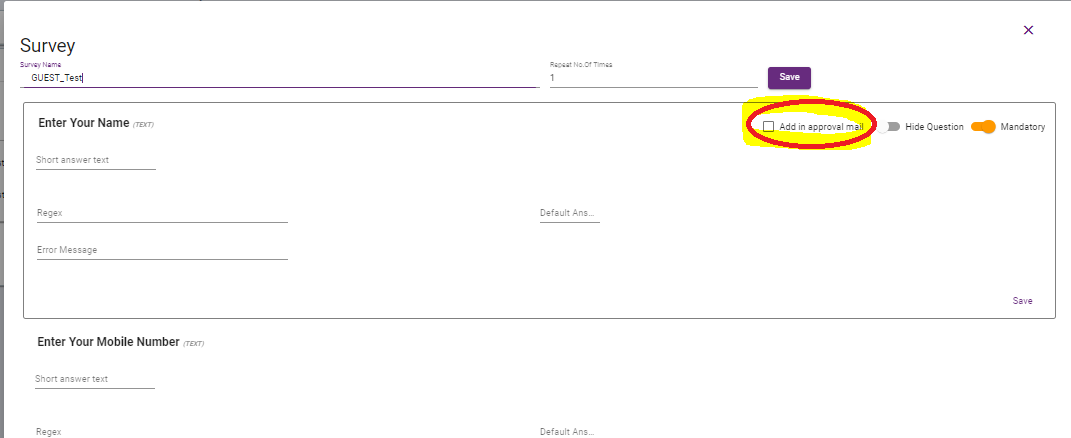
Once you select the checkbox you will receive information about guests in the approval email.
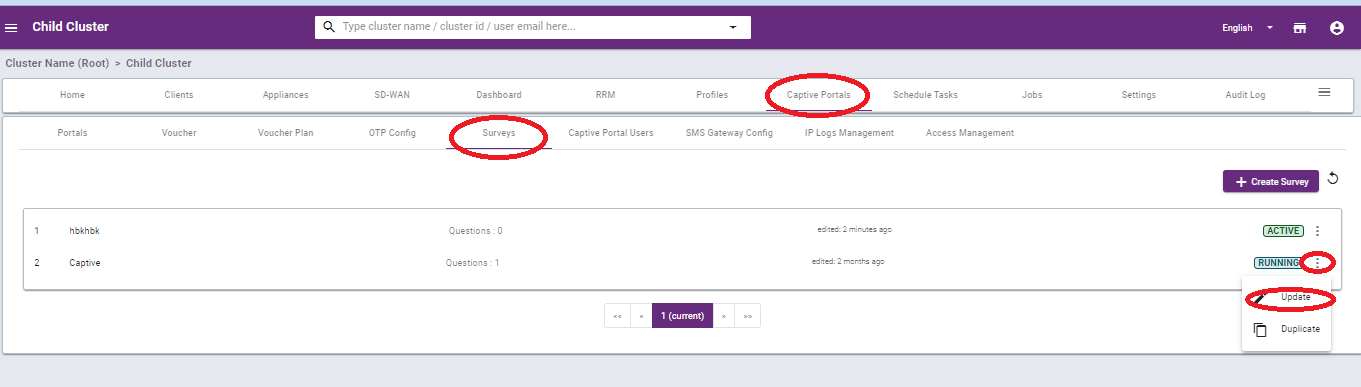
Where to find this checkbox?
Go to the cluster > child cluster > Go to Captive Portals > Go Surveys and click on the three-dot > Click on update of the selected survey. You can reference the below images.

Thank you,
Ray support Team
