
- Go to the Policy tab under Profiles:
- Log into your Ray Cloud Controller.
- Home Page > Profiles > Security Groups.
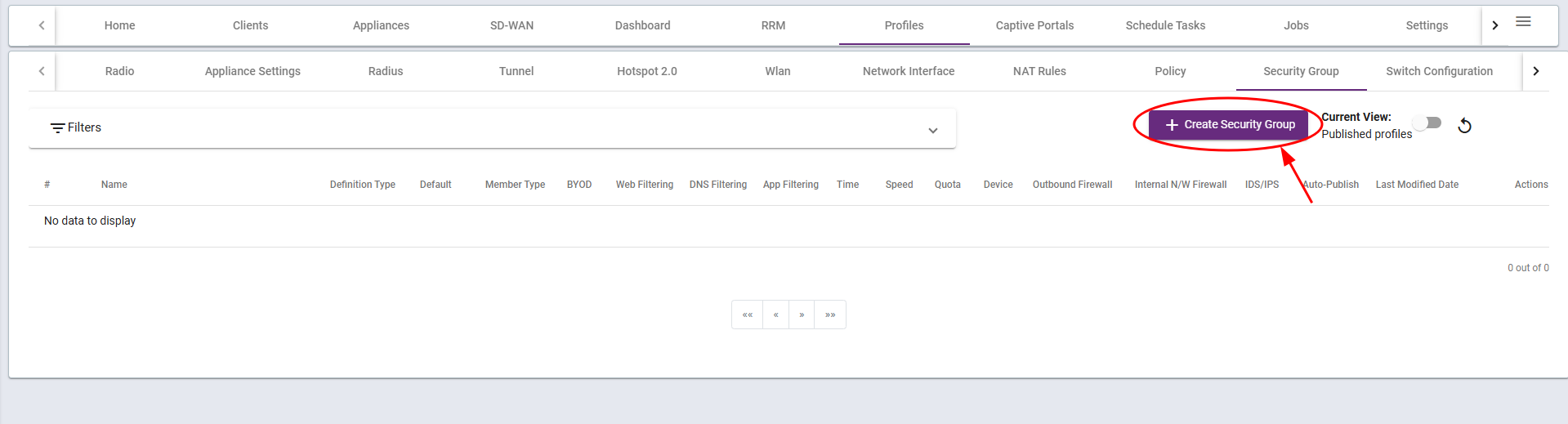
- Name and Settings of the Group
- Group Details
- Enter the name of the Security Group according to your requirements.
- NOTE: Select Default checkbox if you want all the users to be a part of this group by default.
- Select on what basis do you want to group the members, the options are
- MAC Address
- IP Address
- IP Subnet
- Select whether you want to allow or deny default all traffic.
- NOTE: If a filter is allowed in certain policies, you must deny the default traffic within the group to ensure proper enforcement.

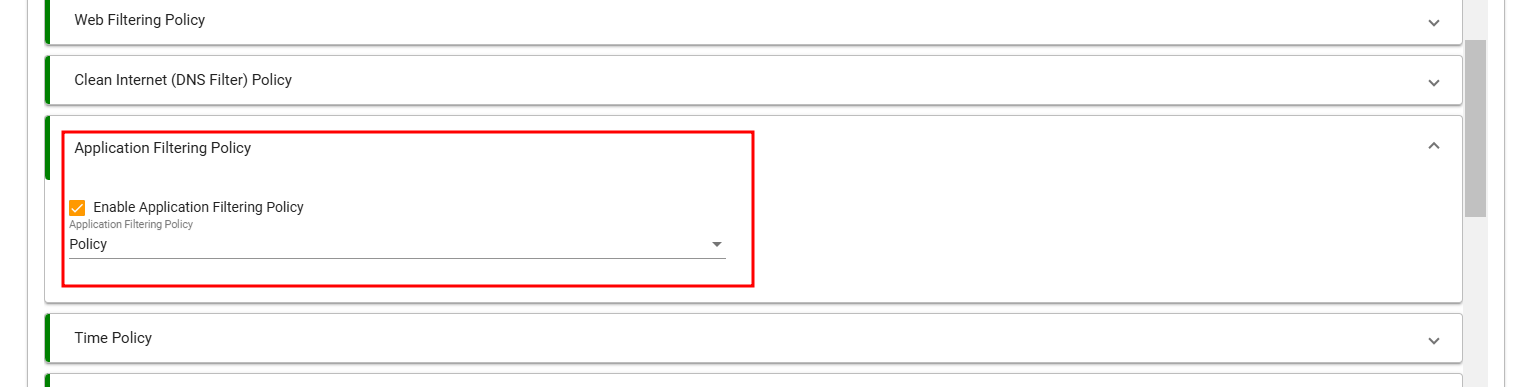
- Add Policies
- Add the policies made under their respective tabs. For reference,
- Setting up the Advance Tab
- Select whether this group is valid for Gateway, Bridge+Firewall or both.

- Save the Group
- Once all the requirements of the Group are setup, click on save to save the group.
Creating a Security Group and Assigning Policies Print
Modified on: Thu, 6 Mar, 2025 at 3:23 PM
Did you find it helpful? Yes No
Send feedbackSorry we couldn't be helpful. Help us improve this article with your feedback.