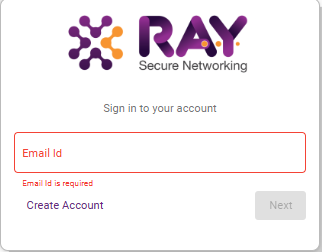
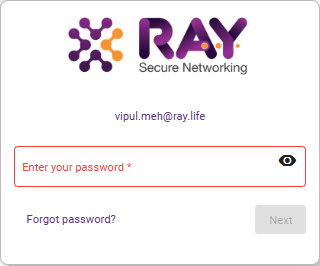
Steps 1: Go to the website: https://cloud.ray.life/sessions/signin
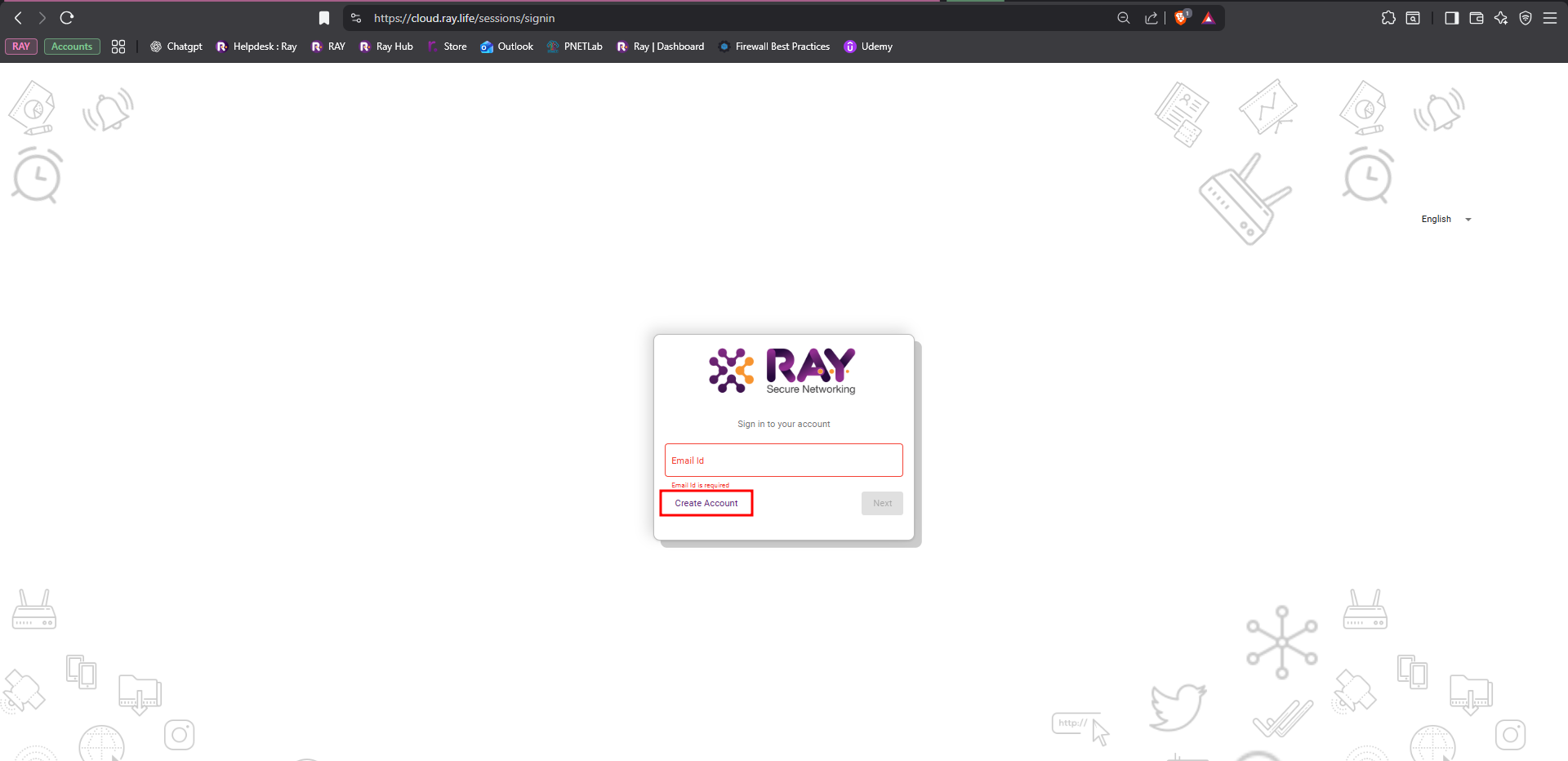
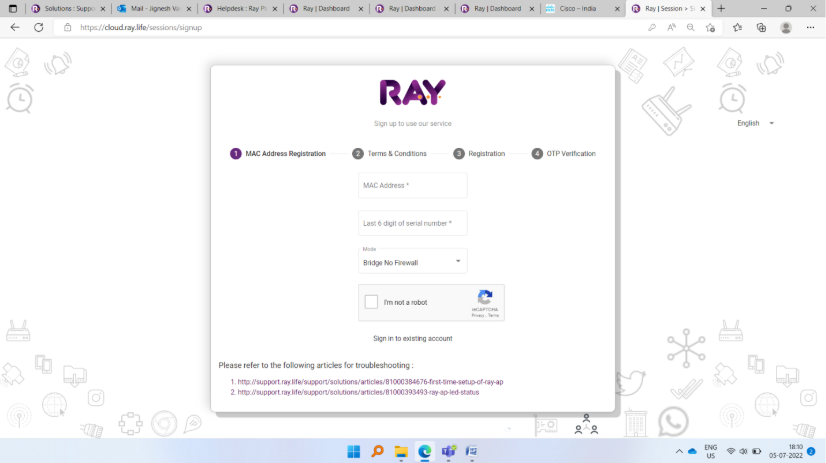
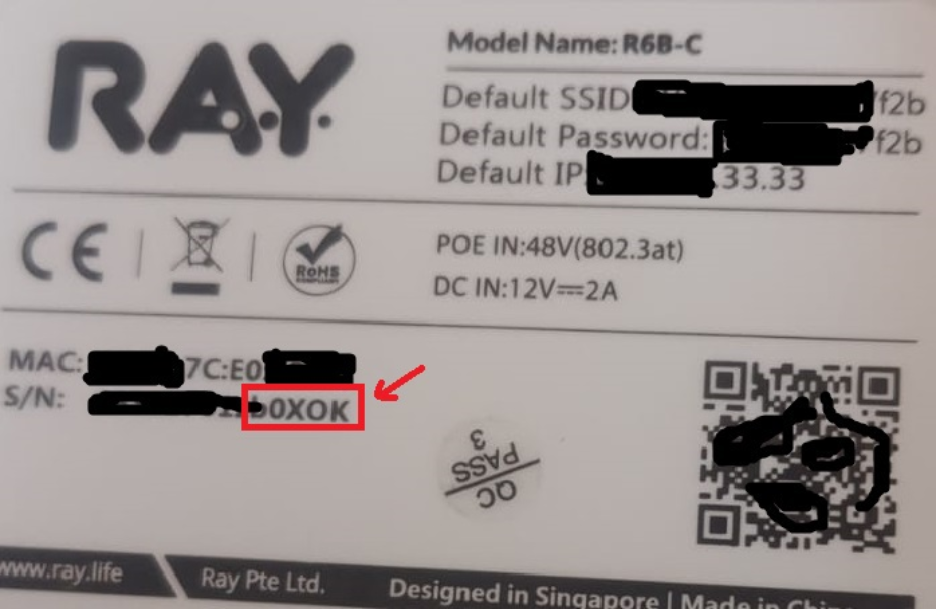
Steps 3: Complete the form with the required information. Next, enter the MAC address and the last six digits of the serial number, both of which can be found on the back of your device
There are three primary operating modes: Gateway, Bridge (No Firewall), and Bridge + Firewall. The mode you select depends entirely on the customer’s requirements. Choosing the correct mode is a critical step in the hardware installation process.
- Gatway: This mode is selecting for our gateway device
- Bridge no firewall: Use this mode for an Access Point when both devices (Ray Gateway and Access Point) are used together.
- Bridge + Firewall: Use this mode for an Access Point only. When the Access Point is used alone, select the Bridge + Firewall mode.
Steps 4: Click on the I Agree button to proceed. 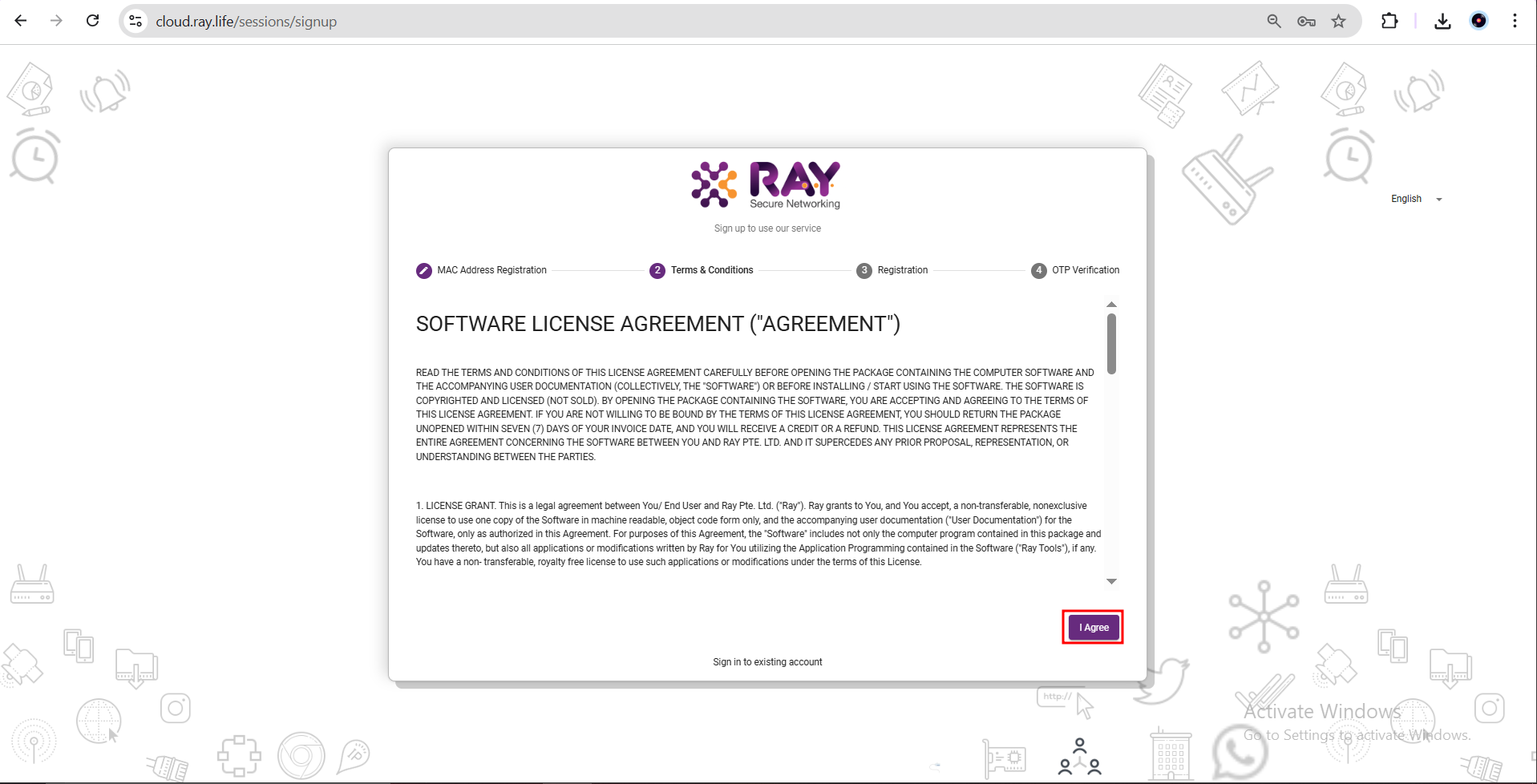
Steps 5: Enter the required details and then click Next.
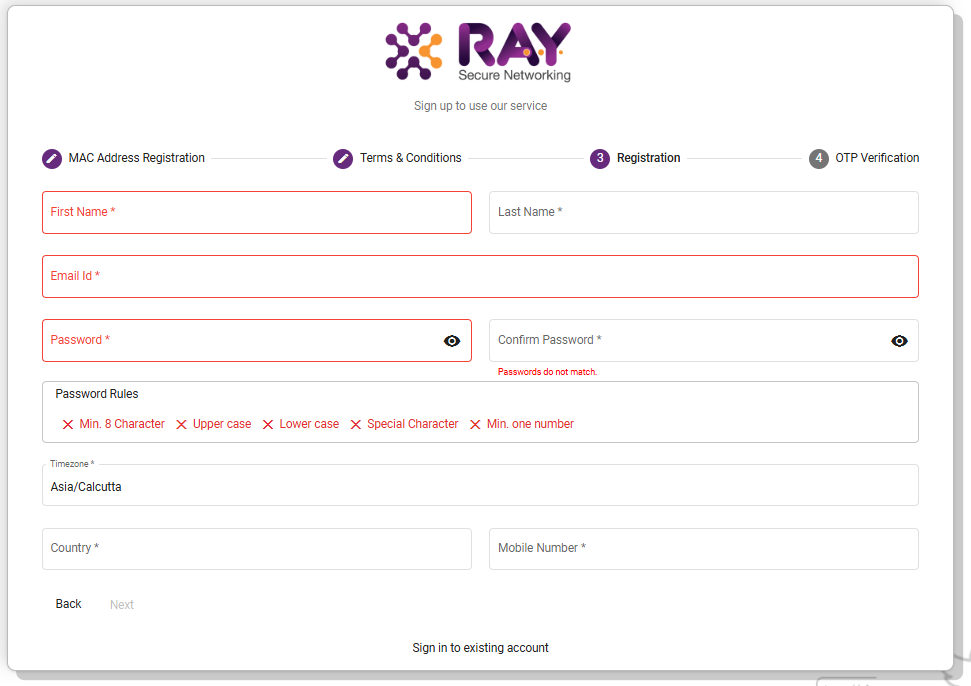
Steps 6: Retrieve the OTP from your email (check spam if not in inbox). Enter the OTP and click Next.
(If the OTP is not received, click Resend OTP, then enter it and proceed by clicking Next.)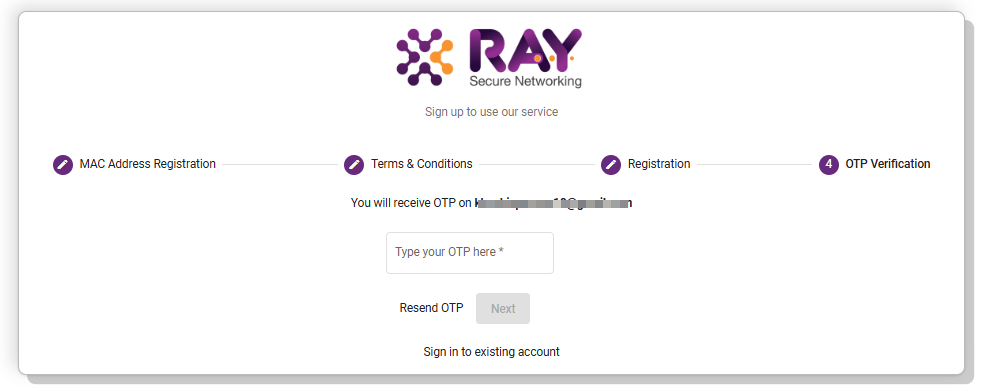
Steps 7: Next, log in with your email ID and password, and proceed by clicking Next.